Banners
Use banners to communicate what matters most the moment users land on the page. A banner can introduce new services, guide onboarding with clear calls to action, or highlight urgent notices. Banners support multiple slides and optional text elements, so you can combine messaging and imagery without overwhelming the rest of the layout.
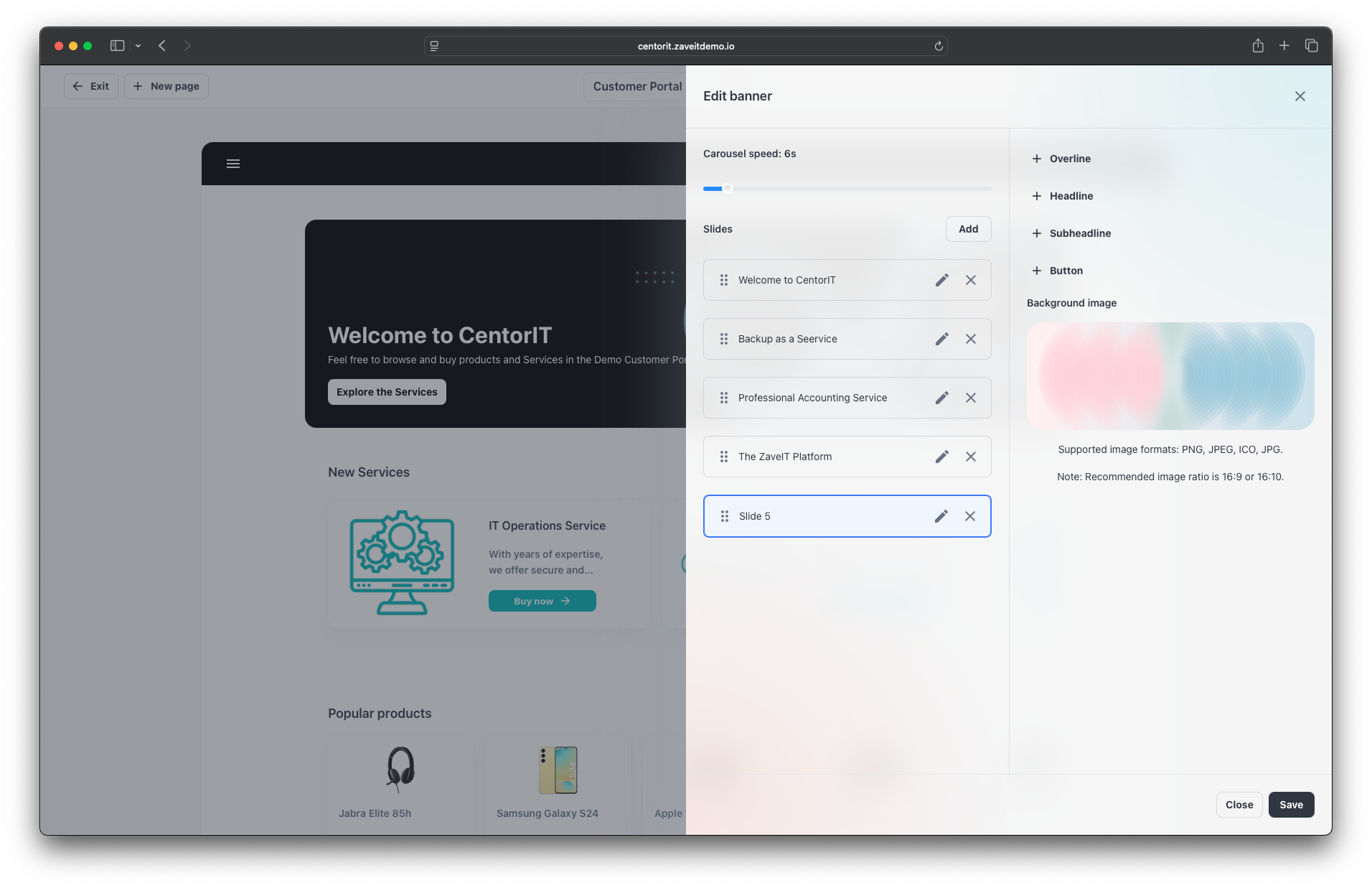
Add a banner
- In the Page Builder, click New section → Banner.
- Under Slides, click Add.
- Configure any of the following (all optional):
- Overline
- Headline
- Subheadline
- Button text
- Background image
- Adjust the slide-show speed.
Users navigate between slides using the arrows in the banner.
Keep messages short. Use one clear call to action per slide.
Recommended image size
Upload banner background images at 2400 × 580 px (~4 : 1 aspect ratio), saved as JPG. The image is cropped to fill the banner area, so keep logos, text and other important content within the middle 70% of the image.
See Image guidelines for all recommended sizes used in the Customer Portal, service shop and webshop.