General
In the General tab, you can configure the core details of a product, including its name, description, pricing, and subscription settings. This section ensures that your product is properly defined before being listed in sales channels.
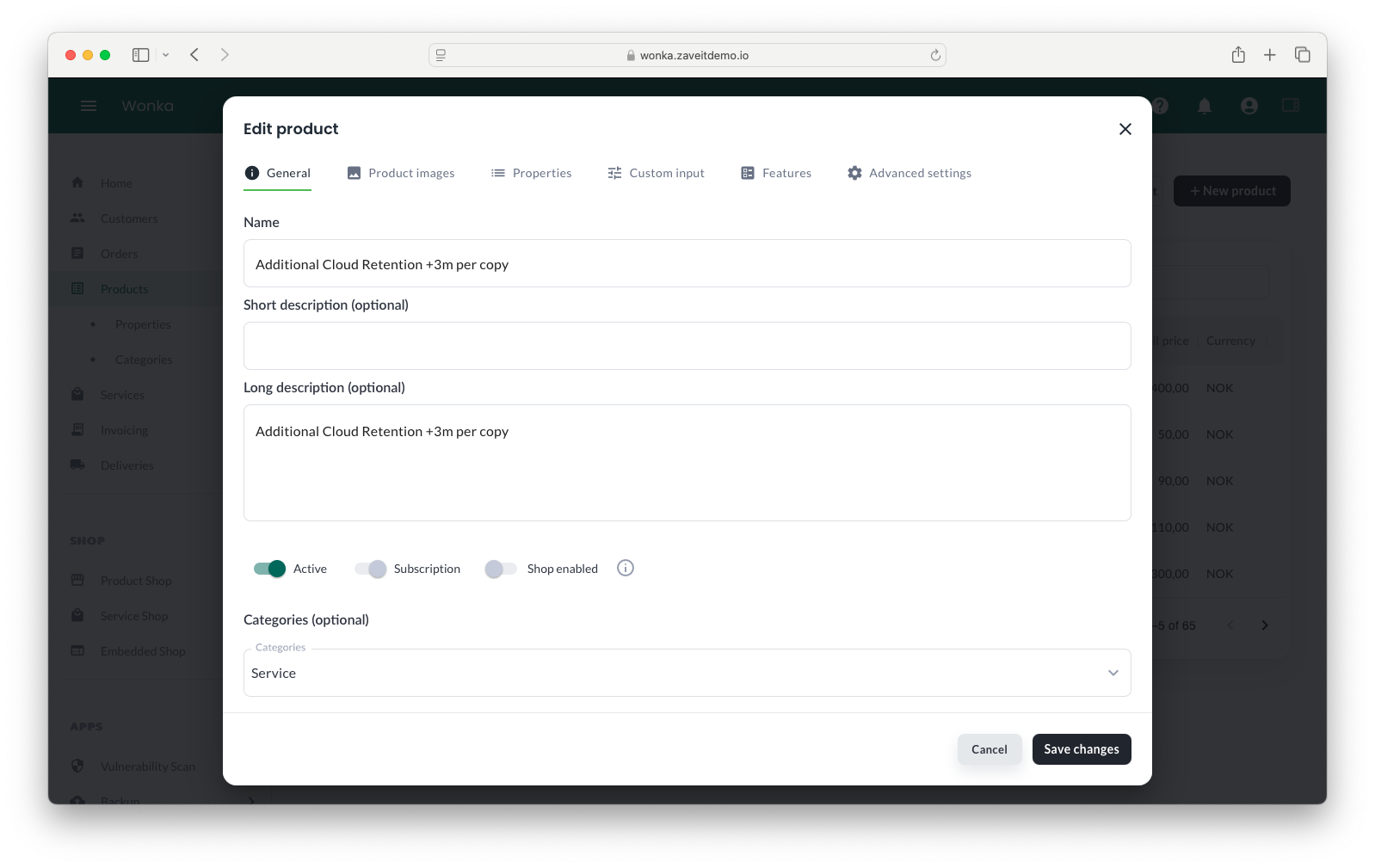
Product Information
This section contains the essential details about the product.
- Name* – The product name displayed in listings and details.
- Short Description – A brief summary of the product (optional).
- Long Description – A detailed description of the product (optional).
- SKU – Stock-Keeping Unit, used for product tracking.
- Categories – Assign the product to a category for better organization.
- Active – Enables the product for sale.
- Subscription – Defines if the product is subscription-based.
- Shop Enabled – Makes the product available in the webshop.
Note: The Name field is mandatory. A clear and concise name improves searchability.
Buying Terms
Define the billing and agreement buying terms for the product.
- Agreement Period – The duration of the contract (e.g., 12 months).
- Billing Cycle – The interval between invoices (e.g., monthly, yearly).
Pricing
You can configure pricing rules based on quantity and period.
- Min Qty – The minimum number the buyer can purchase.
- Max Qty – The maximum quantity allowed per purchase.
- Default Qty – The pre-selected quantity when a buyer views the product.
- Cost Price – The price you pay for the product.
- Retail Price* – The selling price for customers.
Volume Pricing and Discounts
If you want to offer volume pricing, you can define multiple price tiers based on quantity.
- Discount – Automatically applies a price reduction when purchasing higher quantities of the product.
Example of Volume Pricing:
- 1 - 99 units → Full price (e.g., NOK 500 per unit)
- 100+ units → 10% discount (e.g., NOK 450 per unit)
This setup ensures that customers who buy in bulk receive an automatic discount.
Note: Retail Price is mandatory. Cost Price is used for margin calculations but is optional.
Stock Management
This section helps manage product stock and availability.
- Stock Qty – The current stock count of the product.
- Stock Status – Optional status indicator (e.g., "In Stock," "Out of Stock").
- EAN (Optional) – European Article Number for product identification.
- Vendor SKU (Optional) – A vendor-specific identifier for the product.
- Distributor SKU (Optional) – A distributor-specific identifier for the product.
When Vendor (manufacturer) and Vendor SKU are set, ZaveIT can automatically pull manufacturer images and detailed specifications into the WebShop and Custom Pages. See Product Specifications through 1WorldSync.
Distributor Mode
Distributor Mode lets you manage one customer-facing product with several distributor options behind it. Use it when the same product is available from multiple distributors and should appear as one product in the WebShop.
See Distributor Mode for more information.
Saving Changes
Once all details are filled in, click Save Changes to update or create the product. The product will now appear in the Products list and, if enabled, in the WebShop.