Set up Vendor and Vendor SKU
Product Specifications uses two fields on each ZaveIT product to identify it:
- Vendor - the manufacturer name (for example, Apple, HP, Cisco).
- Vendor SKU - the manufacturer's part number for the product (for example, MYJL3H/A).
For ZaveIT to be able to fetch enriched content, both fields must be set and must match the manufacturer's record exactly.
Vendor refers to the manufacturer of the product, not the distributor you bought it from. The same product can be sold by several distributors but will share one Vendor and one Vendor SKU. See Distributor Mode for the related distributor fields.
You can set these fields in two ways:
- In bulk during product import - recommended when onboarding a new catalog.
- Manually on individual products - useful for one-off updates or fixes.
Option 1: Map the fields during import
Most providers populate the Vendor and Vendor SKU during product import, either through a distributor integration or a CSV import.
When importing from a CSV file:
- Start the import wizard from the Products view.
- Upload your CSV file and continue to the Field Mapping step.
- Map the column that contains the manufacturer name to Vendor.
- Map the column that contains the manufacturer SKU to Vendor SKU.
- Continue through the remaining steps and finalize the import.
When importing from a distributor integration, the Vendor and Vendor SKU columns from the distributor feed are mapped automatically when the distributor exposes them. If they are missing, you can either re-import from CSV with the correct mapping or update the products manually (see Option 2 below).
Option 2: Set the fields manually on a product
You can also set or update the fields directly on an individual product:
- Navigate to Products and click on the product you want to update.
- The Edit product modal opens on the General tab.
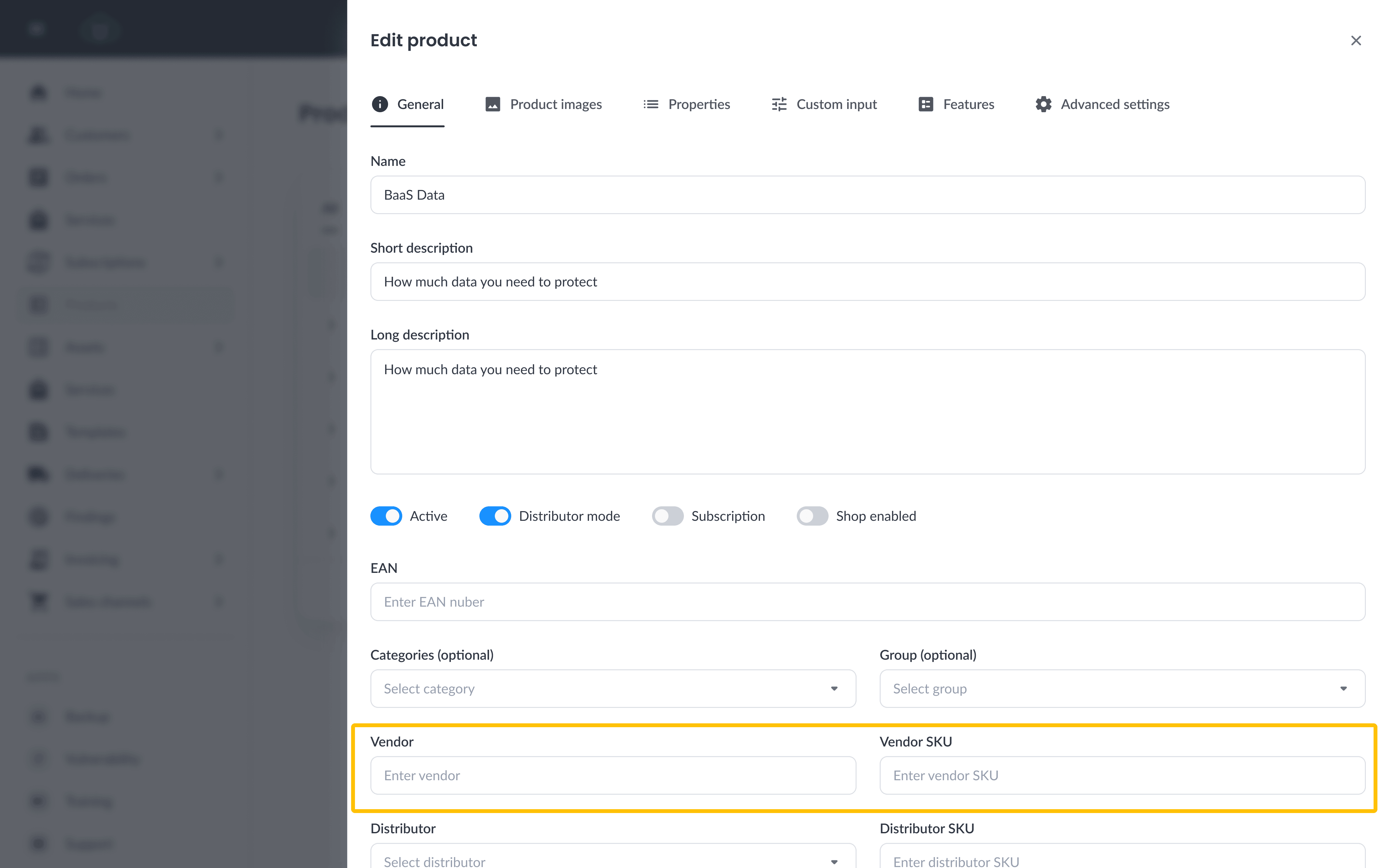
- Scroll to the highlighted section in the screenshot below and fill in:
- Vendor - the manufacturer name.
- Vendor SKU - the manufacturer SKU.
- Click Save Changes.
The next time the product is displayed in the WebShop or on a Custom Page, ZaveIT will look up the matching content and show the enriched image and specifications.
Verifying the lookup worked
The fastest way to confirm a product is correctly mapped is to view it in the WebShop:
- The product list should show the manufacturer image instead of the placeholder icon.
- The product detail page should show the manufacturer image and a populated Product info / Specifications table.
If the product is still showing a placeholder, double-check that:
- The Vendor matches the manufacturer name as registered with the manufacturer.
- The Vendor SKU is the exact manufacturer SKU (case-sensitive, no extra characters).
- The product itself is Active and Shop enabled.
If the values are correct and the product still looks empty, the product may not be covered by the underlying catalog yet. See the coverage note on the overview page for what to expect in those cases.