Distributor access
You can control which customers have access to each distributor. This helps you limit distributor visibility and ordering options to selected customers only.
Configure distributor access
- Navigate to Settings > Products.
- In the Distributors section, click the edit icon for the distributor you want to update.
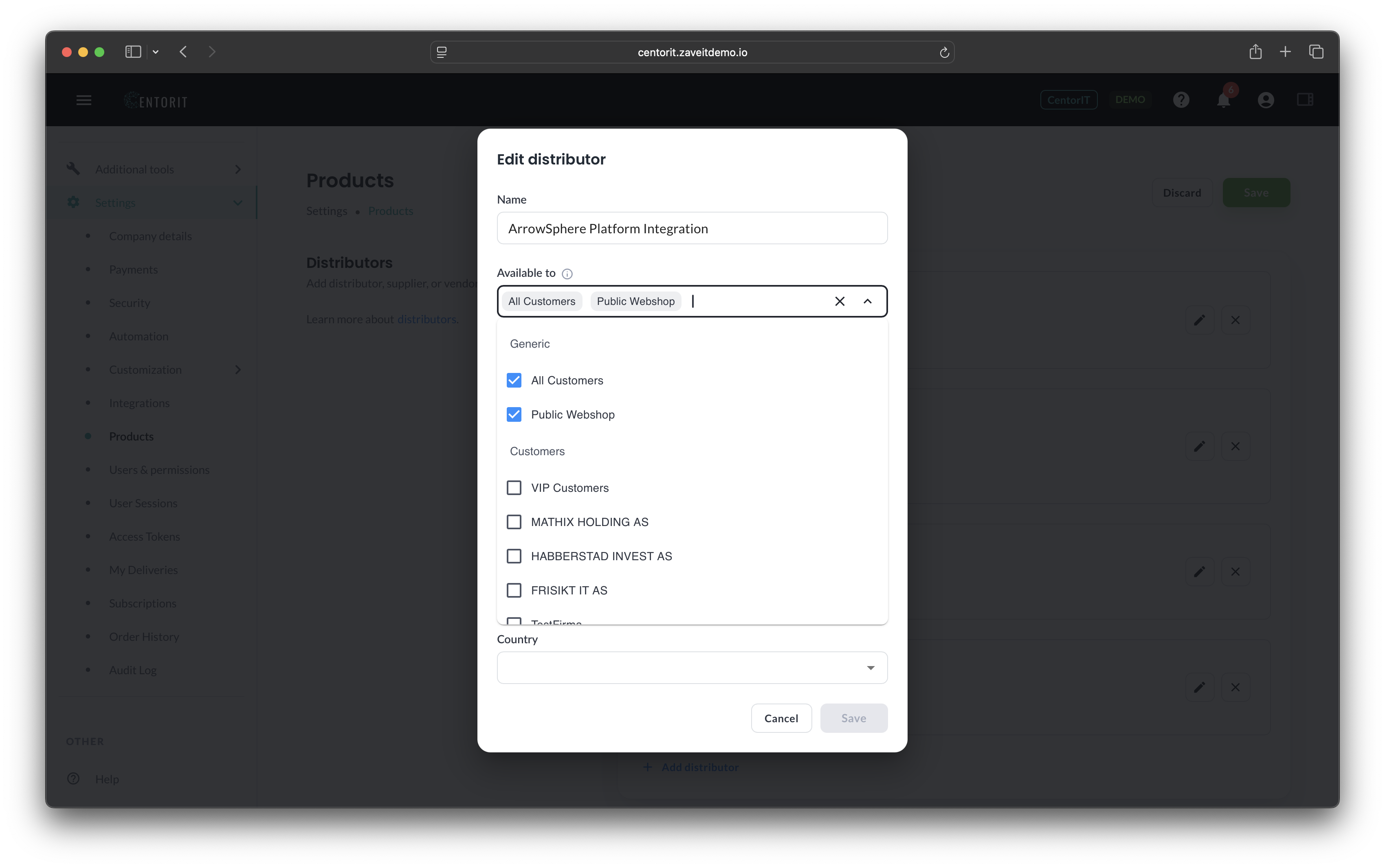
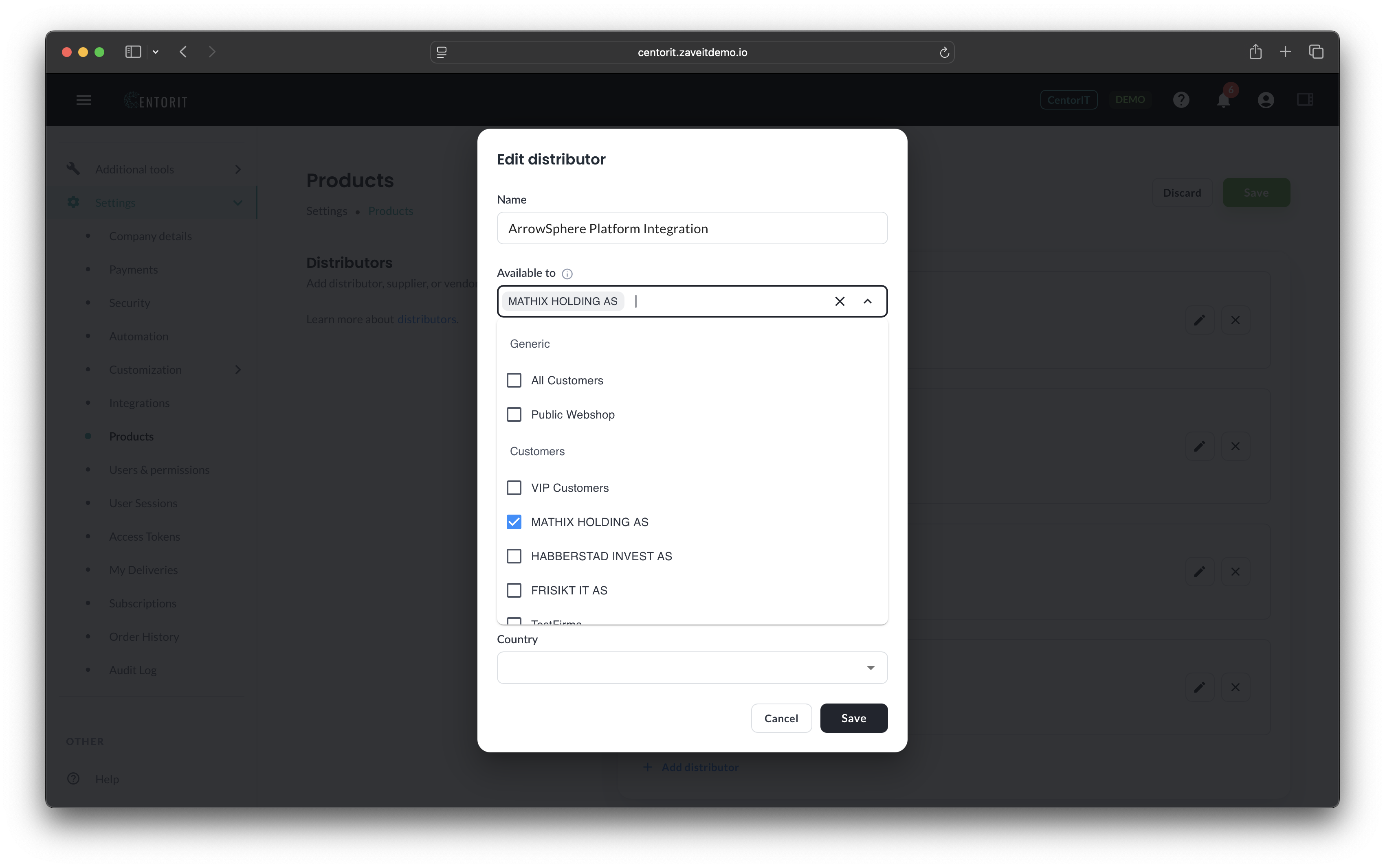
- In Available to, select who can access that distributor:
- Generic options such as All Customers and Public Webshop.
- Specific customers listed under the Customers group.
- Choose one or more entries depending on who should be able to use this distributor.
- Click Save in the modal, then click Save on the Products page to apply the changes.
What the "Available to" options mean
- All Customers: The distributor is available to all customers in your tenant.
- Public Webshop: The distributor is available in your public webshop channel.
- Specific customers (under Customers): The distributor is only available to the selected customer accounts.
How selections work
- If you select one or more specific customers, you cannot also select All Customers or Public Webshop.
- If you select Public Webshop, you must also select All Customers.
- Public Webshop cannot be used as a standalone option.
- Remove an option from the selected list to revoke access for that audience.
Example setups
- Global availability: Select All Customers.
- Webshop availability: Select All Customers + Public Webshop.
- Account-based availability: Select only named customers (for example key accounts or partner customers), without All Customers or Public Webshop.